
Download Tweak UI – Customize Windows, Optimize Performance, Streamline Login
Overview
Tweak UI is a utility tool designed to enhance and personalize the Windows operating system experience. Developed by Microsoft, the application provides users with advanced configuration options that extend beyond the standard settings available in Windows. Its primary purpose is to empower users—especially those seeking deeper control over their system—to fine-tune interface behaviors, performance settings, and user workflows. By offering access to hundreds of customization parameters, Tweak UI addresses the limitations of default Windows configuration tools, allowing users to tailor their environment to match individual preferences and productivity needs.
The tool is particularly useful for users who want to optimize system responsiveness, streamline the login process, or modify file explorer behaviors. It serves both casual users looking to simplify their desktop experience and power users aiming to fine-tune performance. While the developer did not provide additional technical details about the tool’s architecture or underlying mechanisms, its long-standing presence in the Windows ecosystem underscores its reliability and relevance.
Real-world use cases include reducing animation delays for faster navigation, enabling automatic login for quicker access, and adjusting system behaviors in Explorer for improved file management. In the broader app ecosystem, Tweak UI fills a niche for system-level customization tools that are both powerful and accessible, offering a level of control often missing from standard OS utilities.
Key Features & Functionality
- Extensive Customization Options: Users can modify interface elements such as menus, tooltips, and window behaviors, enabling a personalized Windows experience that reflects individual workflow preferences.
- Speed Optimization Settings: Tweak UI allows adjustments to system animations and response times, helping users reduce delays and improve overall system responsiveness.
- Automatic Windows Login: This feature enables users to bypass the login screen at startup, streamlining access to their desktop environment.
- Explorer Configuration: Users can customize file and folder visibility, default behaviors, and navigation patterns in Windows Explorer to enhance file management efficiency.
- User-Friendly Interface: Despite its advanced capabilities, Tweak UI features a straightforward control panel interface that simplifies navigation and configuration, making it accessible to non-technical users.
For example, a user working in a high-speed design environment might disable window animations to reduce lag during transitions. Similarly, a home user with a shared computer might benefit from automatic login to minimize setup time. The tool’s ability to influence both performance and usability makes it a valuable utility for a wide range of users.
Interface, UX & Performance
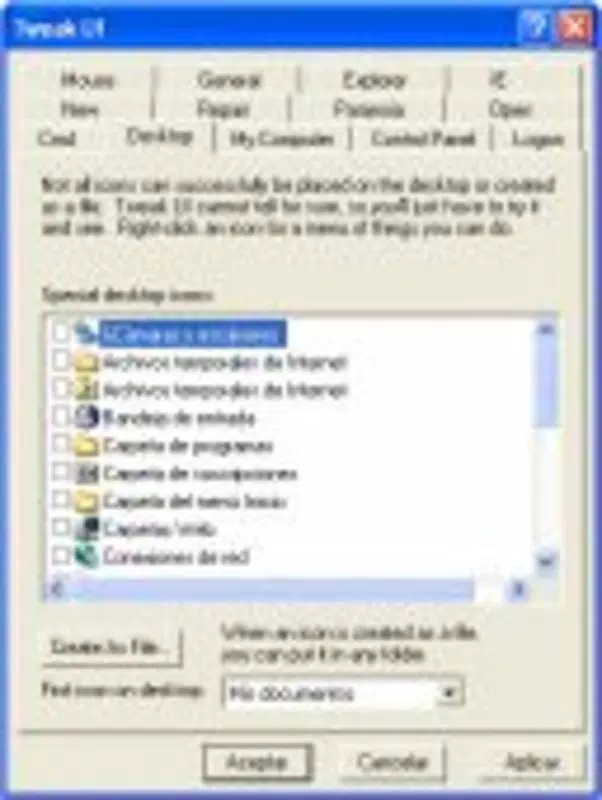
The interface of Tweak UI is integrated into the Windows Control Panel, presenting a clean, organized layout that aligns with the classic Windows design language. Navigation is intuitive, with categorized settings grouped under clear headings, allowing users to locate desired options quickly. The layout prioritizes usability, with descriptive labels and straightforward controls that minimize confusion.
Performance is consistent with the expectations of a lightweight system utility. Although the developer did not list formal performance metrics, the tool operates efficiently without significant resource consumption. It does not introduce lag or instability during operation, and its integration with the Control Panel ensures seamless access. Responsiveness across different device categories—such as desktops, laptops, and workstations—has not been formally documented, but the tool functions reliably on standard Windows hardware.
Stability is maintained through its native integration with the Windows registry, ensuring that changes are applied consistently. Users can expect reliable behavior when adjusting settings, with no known issues related to crashes or data corruption. The tool’s lightweight footprint and low overhead make it suitable for long-term use without impacting system performance.
Platform Compatibility & Technical Requirements
Tweak UI is designed for Windows operating systems. The specific platform and version details were not provided. The file size of the application is not listed, but the installation process involves unzipping a file and running a .inf installer, suggesting a minimal footprint. The developer did not specify minimum OS requirements or compatibility with modern Windows versions.
Given its release date of March 29, 2007, compatibility with current Windows releases may vary. Users are advised to test the tool in a controlled environment before deployment. The lack of updated technical specifications means that users should exercise caution when installing on newer systems, particularly those running Windows 10 or Windows 11.
Pros and Cons
Pros
- Offers deep customization beyond standard Windows settings
- Improves system responsiveness through speed optimization options
- Enables automatic login for faster access
- Provides granular control over Windows Explorer behavior
- Features a simple, intuitive interface suitable for non-technical users
Cons
- Released in 2007; compatibility with modern Windows versions is uncertain
- No official updates or support since release
- Installation requires manual steps (unzip, .inf file)
- Not available through official app stores or digital distribution platforms
- Limited documentation and community support
FAQ
Is Tweak UI safe to install on modern Windows systems?
While Tweak UI was originally designed for older Windows versions, its safety depends on the system environment. Users should back up the registry before installation and test in a virtual machine if possible.
Can Tweak UI be used on Windows 10 or Windows 11?
Compatibility with Windows 10 and 11 is not officially confirmed. Some users have reported success, but it may not function properly due to changes in system architecture and security policies.
How do I install Tweak UI?
Download the package, unzip it, locate the tweakui.inf file, right-click it, and select 'Install'. After installation, a new icon will appear in the Control Panel.
Does Tweak UI require administrator privileges?
Yes, installation and configuration of system-level settings typically require administrator rights to modify the Windows registry and system behaviors.
Is Tweak UI available for free?
Yes, Tweak UI is a free tool originally distributed by Microsoft. It does not require payment or licensing for use.
Final Thoughts
Tweak UI remains a notable utility for users seeking advanced customization of their Windows environment. Despite its age, its core functionality—such as speed optimization, automatic login, and Explorer configuration—still holds value for those who prefer a highly personalized system. The tool’s user-friendly interface and extensive feature set make it accessible even to non-technical users, though its outdated nature raises compatibility concerns.
For users working with legacy systems or those who value deep control over their operating environment, Tweak UI offers a unique advantage. However, caution is advised when deploying it on modern Windows platforms due to the lack of official support and updates.
Download Tweak UI now to unlock advanced system customization and enhance your Windows experience.


